Selling on Nouhata
I am Mina, and this is the whole of it in 13 steps. Press Next to go through them, or read straight down.
Step 1 of 13
Open your shop
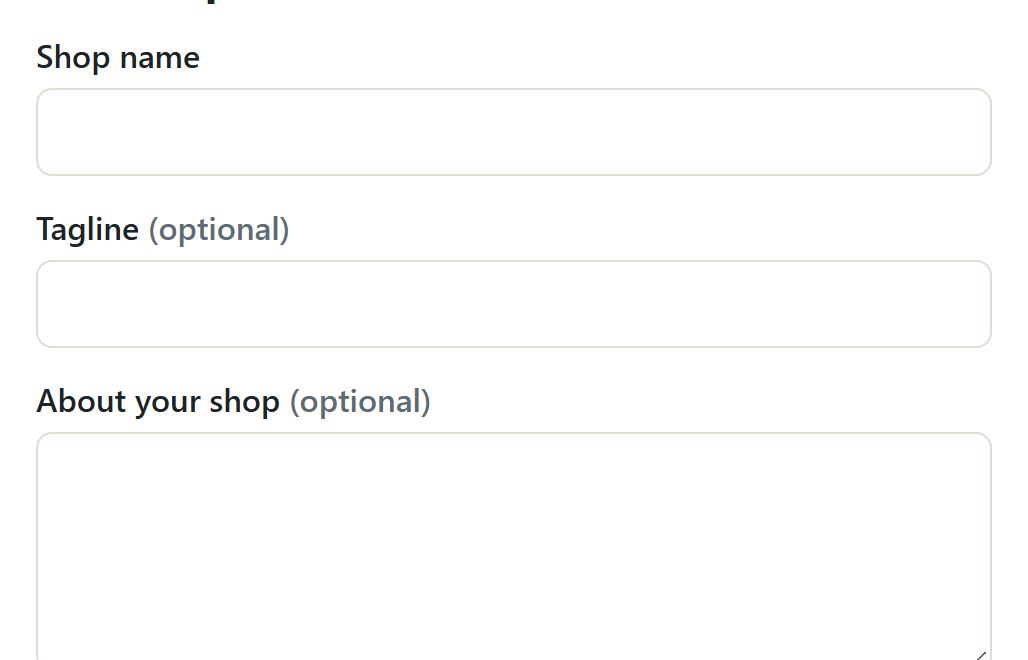
Three fields and your shop is open.
Press Open a shop in the footer, or Sell in the menu. You give your name or your business name, a phone number and your address, and choose whether you are selling as a person or as a business. Opening a shop is free. Your shop is live as soon as the form is saved, and you can change its name, its tagline and its description at any time from the dashboard.
Step 2 of 13
Find your Product Dashboard
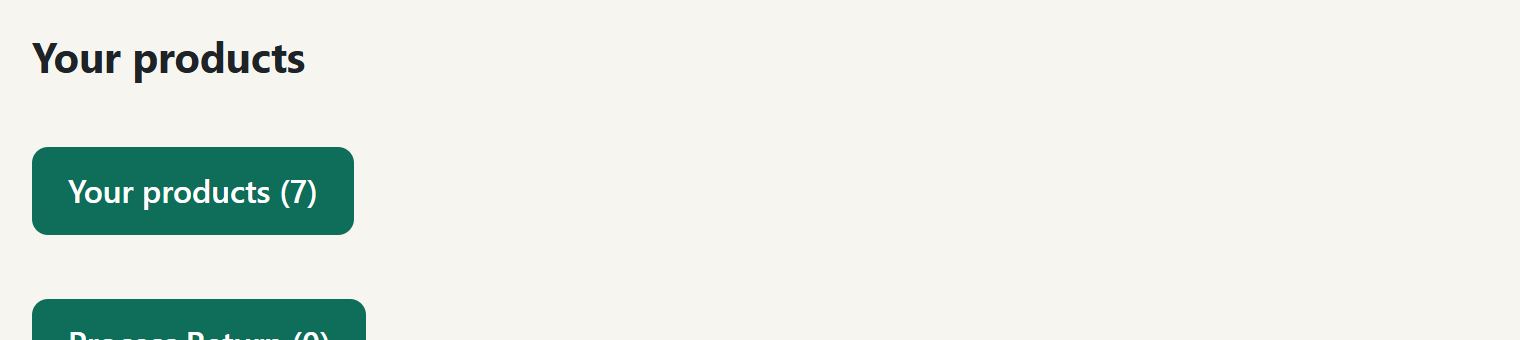
One button on My shop opens everything to do with products.
Everything to do with products lives behind one button. Open My shop from the menu and press Your products - the number beside it is how many you have. That opens the Product Dashboard, and from there you add products, group them, print labels, find one by its barcode and see the list boxes. Orders are a separate button: Process order opens the Orders Dashboard instead.
Step 3 of 13
Add a product
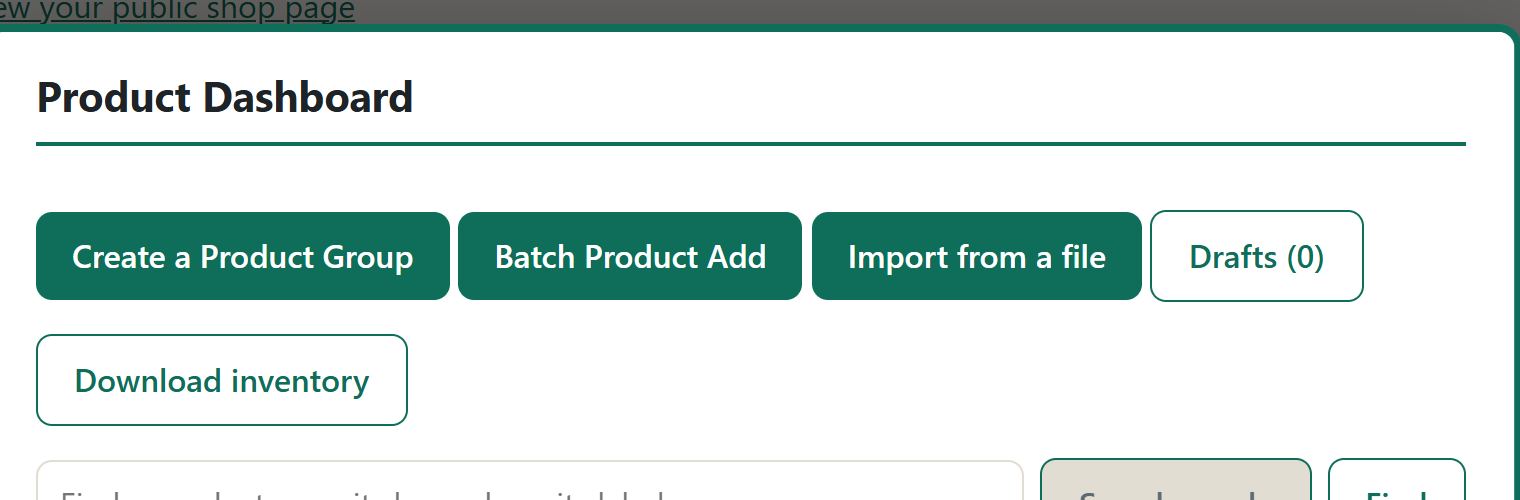
Press Add product. You do not need a group, a batch or a file.
In the Product Dashboard press Add product. That is all you need - the form opens and you fill it in. The buttons beside it are for other jobs and you can ignore them: Create a Product Group makes a shelf to file things on, Batch Product Add is for typing several at once, Import from a file is for a spreadsheet, and Drafts holds anything you started and did not finish. You do not have to make a group first, and you do not have to use a batch. One product, one Add product.
Step 4 of 13
What the thing is
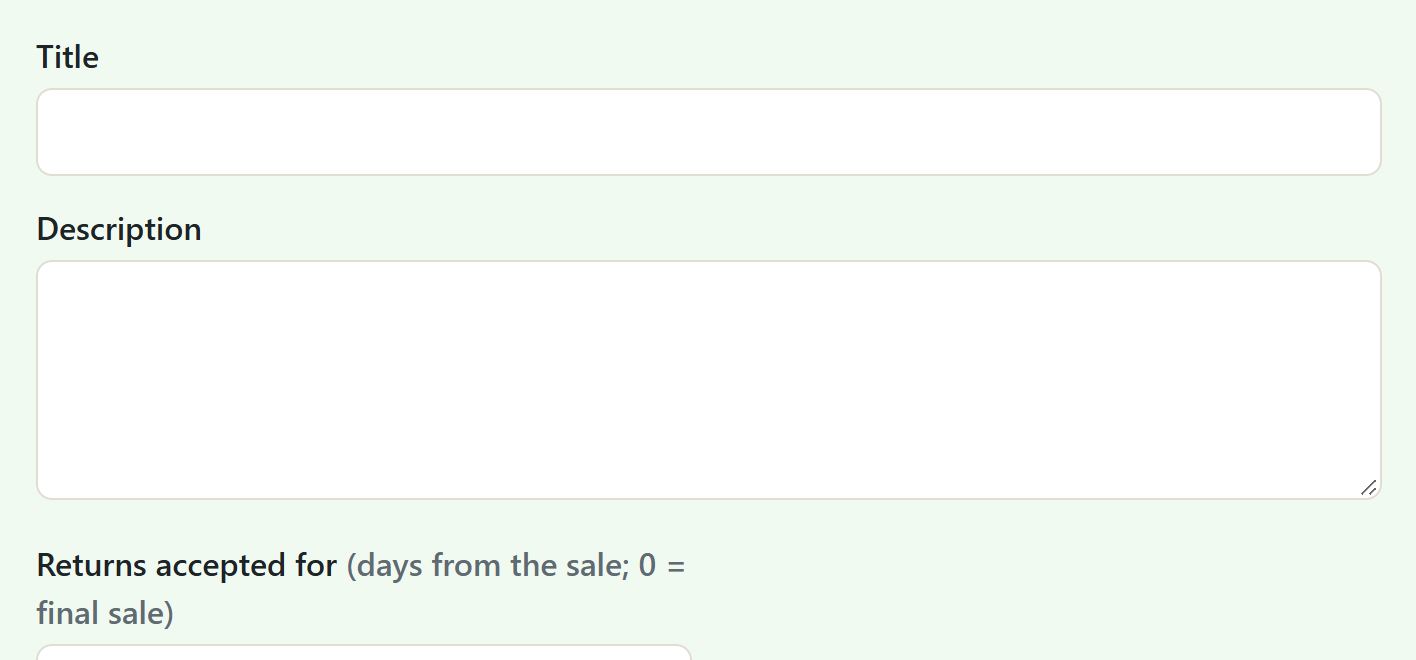
Title, description, category, condition. The rest can wait.
The top of the form is what the thing is. Title is what buyers search for, so write what you would say out loud: the make, the model, the size. Description is the room to be honest in - what works, what does not, what is missing. Category puts it in the right part of the market. Condition is four choices: New, Like new, Used, For parts. Quantity in stock is how many you have; when it reaches zero the listing stays up and says Sold out rather than disappearing. Returns accepted for is the return window in days, counted from the sale - 0 means final sale - and there is room for a return policy in your own words beside it. Only the title, the price and the quantity really have to be filled in. Everything else can be added later by opening the product again.
Step 5 of 13
Free, or final sale
Two tick boxes that change what the item is: free, and final sale.
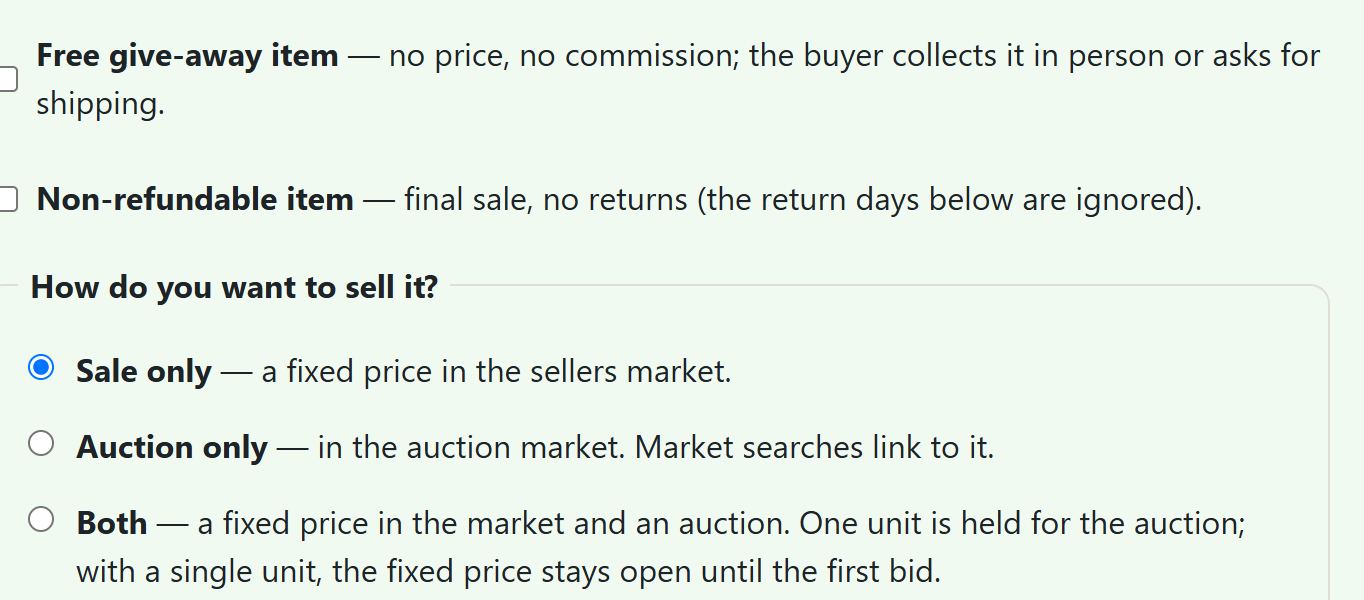
Two tick boxes change what the item is, so read them before you tick. Free give-away means no price and no commission: you are giving it away, and the person collects it from you or pays the postage themselves. A free item is not refundable and cannot be returned - there is no payment, so there is nothing to refund, and no return window runs on it. Non-refundable marks a thing you are selling as a final sale: no returns, and the return days are ignored. Use it honestly. A buyer reads both of these on the listing before they commit, and the law page says the same thing in the same words.
Step 6 of 13
How you want to sell it
A fixed price, an auction, or both at once.
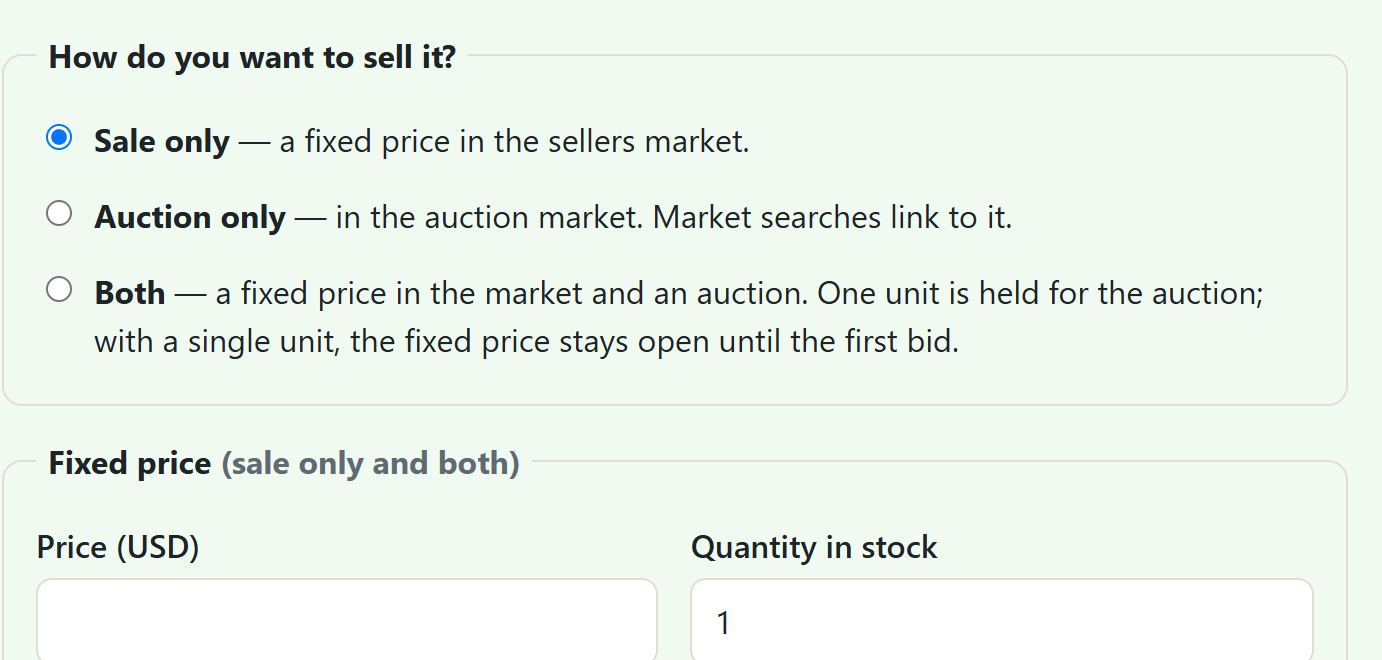
Then choose how you want to sell it. Sale only is a fixed price in the sellers market: fill in Price and Quantity in stock. Auction only puts it in the auction market: fill in the starting price, how many days it runs, and if you want them a reserve - the least you will accept - and a bid increment. Both does what it says: the item sits at a fixed price in the market and in the auction at the same time, with one unit held back for the auction so you cannot sell the same thing twice. A sale-only item needs a price; an auction needs a starting price; and a reserve below the starting price is refused, because it would mean nothing.
Step 7 of 13
Scan a barcode instead of typing it
Point your phone at the box. The number fills itself in.
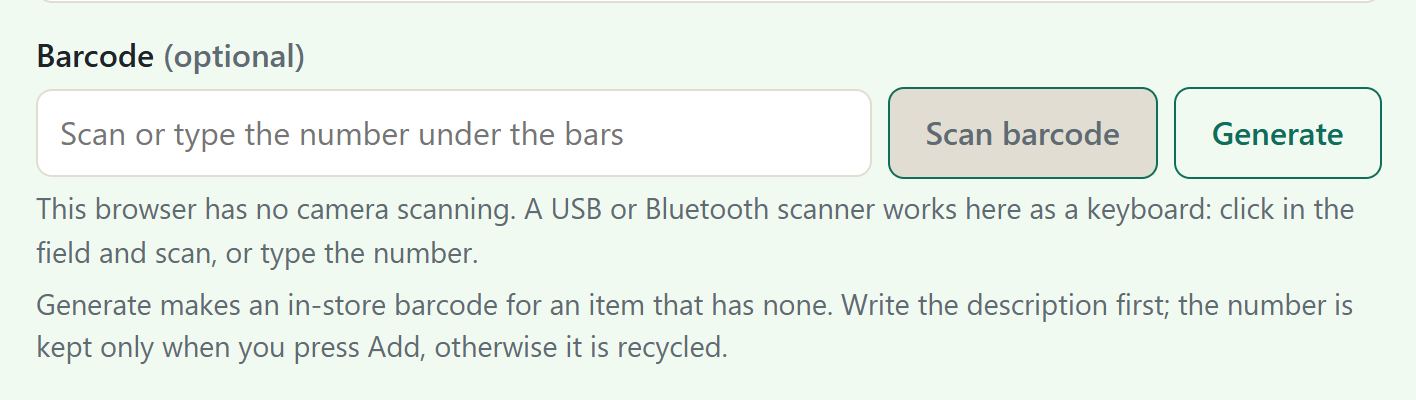
Every product can carry a barcode, and you almost never have to type one. In the Android app press the scan link beside the barcode box and the camera reads the code off the box. In a browser the same box accepts a hand scanner: it types the digits and presses Enter, and the form moves on by itself. If the item has no barcode at all, press Generate and Nouhata mints one for you that no other product will ever have. Print it with the label button, stick it on, and the find bar on your dashboard will open that product whenever the number is scanned again.
Step 8 of 13
Photos and video
Eight photos, one video, and nothing is sent until you press Upload.
Open a product and press Photos and videos. There are six photo slots and one video. For each slot, choose a file from the device or press Take a photo to use the camera there and then. Each picture appears beside its slot before it is sent, so you can see you picked the right one, and the first photograph is the one buyers see in the market - put your best first. Do not worry about the size: a photo straight off a phone is usually too big, so the page shrinks it as soon as you choose it and tells you what it did. Five megabytes each is the limit for anything that reaches the server unshrunk. A video must be MP4, one minute or less, and up to 40 MB; a longer one is refused. AND THEN PRESS UPLOAD. Choosing a file does not send it. Nothing you picked is saved until you press Upload - the photos have their own Upload button and the video has its own - and if you leave the page first, you will come back to empty slots.

Step 9 of 13
Giving something away, safely
Meet in a public place. If you cannot, read this twice.
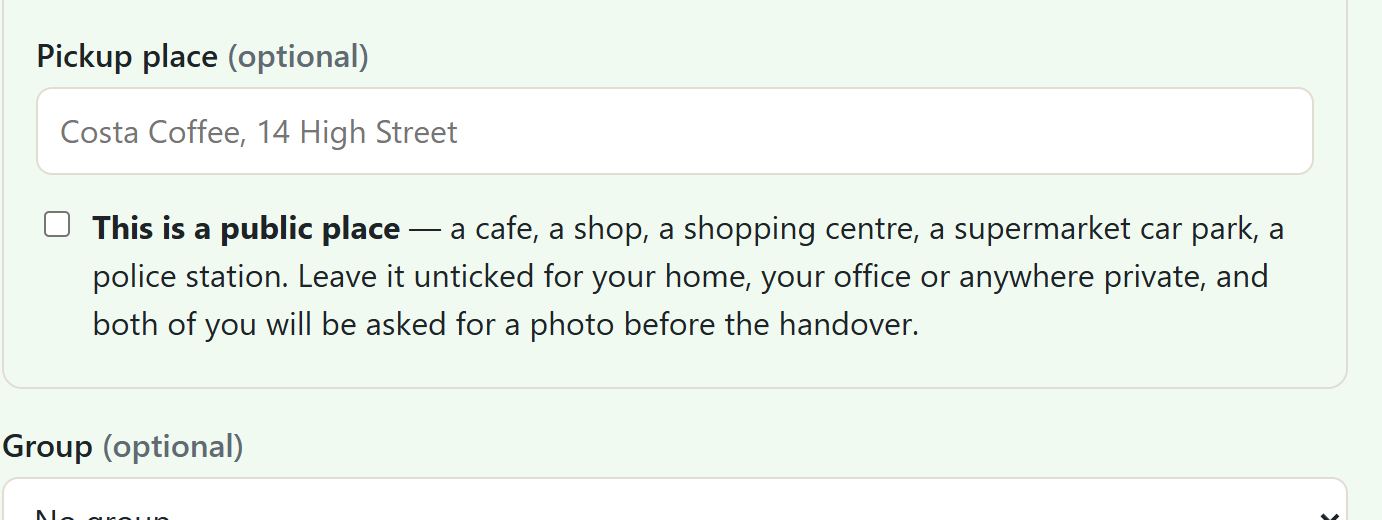
A free item is usually collected in person, which means meeting a stranger. Nouhata is not at that meeting and cannot protect you there, so the rules are simple and you should follow them. MEET IN A PUBLIC PLACE: a cafe, a shop, a shopping centre, a supermarket car park, the lobby of a police station. Fill in Pickup place on the form and tick This is a public place, and the listing says so to whoever claims it. Do not go inside a stranger's home, and do not invite one into yours. If the pickup is NOT a public place - a home, an office, a yard, a lock-up, anywhere enclosed or quiet or badly lit - then before the item can be marked handed over, both of you must send a photograph of yourselves through Nouhata. Each of you sees the other's picture, and only for that one order: it is not offered as a download and it is not shown to anyone else. It is deleted once the pickup is completed, and in any case after thirty days. That photograph is the only thing standing between you and a complete stranger at your door, so do not skip it and do not hand anything over to someone whose face does not match. Nothing is ever paid in person: a free item costs nothing at all, and anyone who asks you for cash, a transfer or a card number at a pickup is running a fraud. Take someone with you, tell a person where you are going, and if it feels wrong, leave - no item is worth it.
Step 10 of 13
Put products into groups
Shelves for your own convenience, named by you.
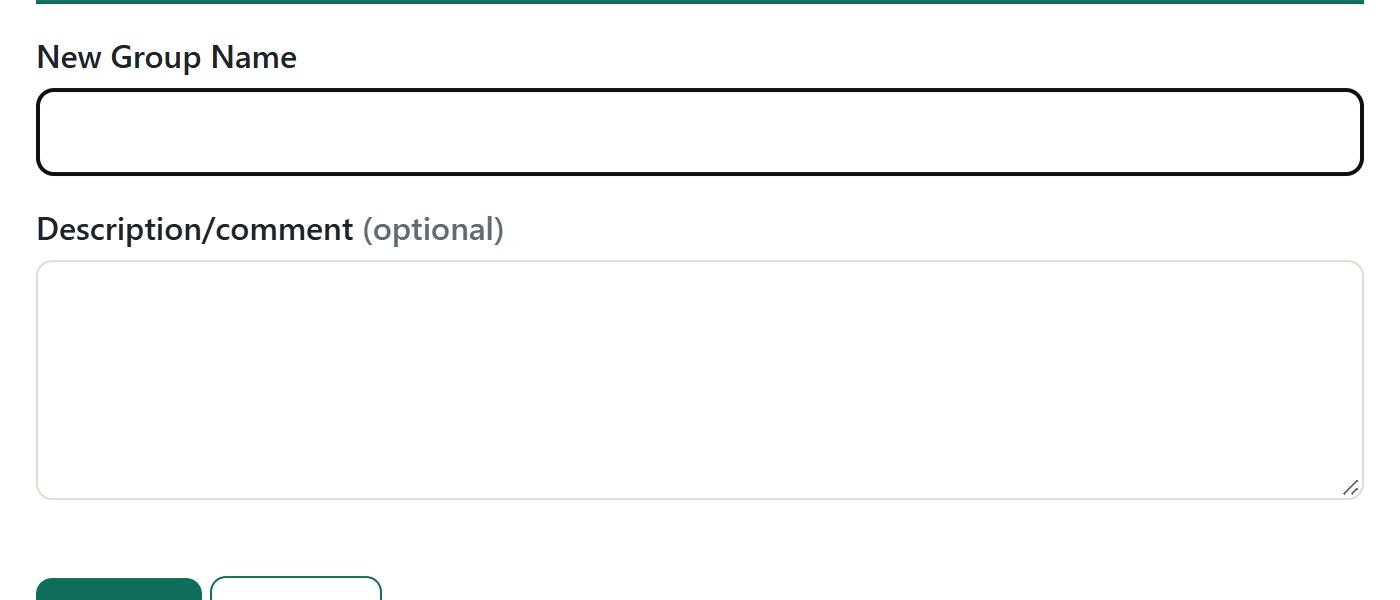
A group is a shelf you name yourself - Winter stock, Camera gear, Ready to post - and it is for your convenience, not the buyer's. Press Create a product group, give it a name and a note, and it gets its own list box on your dashboard. Add a product to a group when you create it, or open any product and change its group from the toolbar. Remove this group takes the shelf away without touching the products on it. Groups are optional: a product never needs one.
Step 11 of 13
The list boxes on your dashboard
Every box is a job waiting, and the number tells you how many.
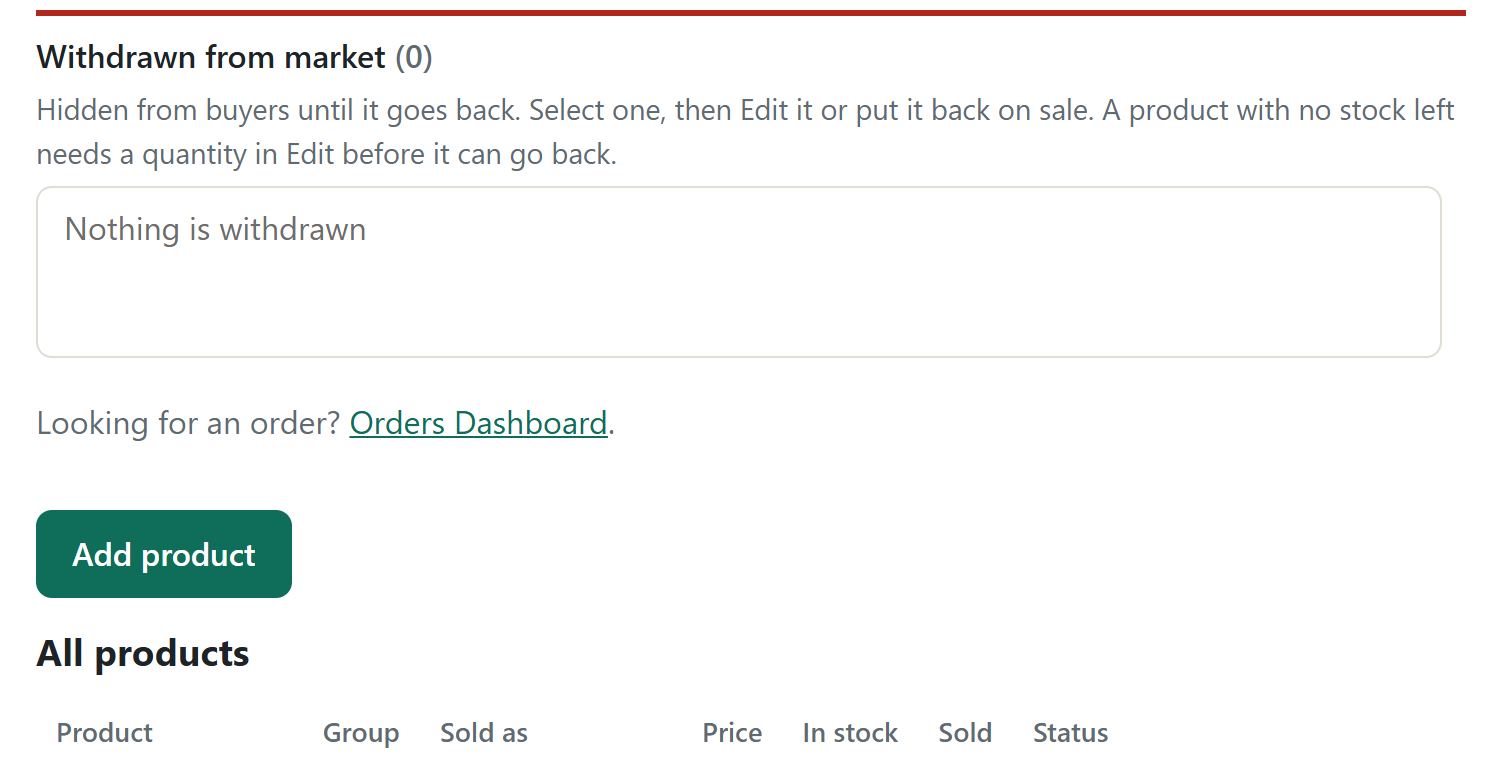
Your dashboard is a row of list boxes, and each one is a job. Orders to process holds what is paid and waiting to be sent. Sold and shipped is what is on its way. Withdrawn from market holds what you have taken off sale, with Put back to market beside it. Cancelled orders is what fell through. Process Return counts returns waiting on you. Product queries counts questions buyers have asked. Messages holds a line for every order that has been paid for. The number in a box is how many are in it, so a zero means nothing is waiting.
Step 12 of 13
Weigh it, and the postage works itself out
Fill in the weight and the box, and every buyer sees their own real delivery cost.
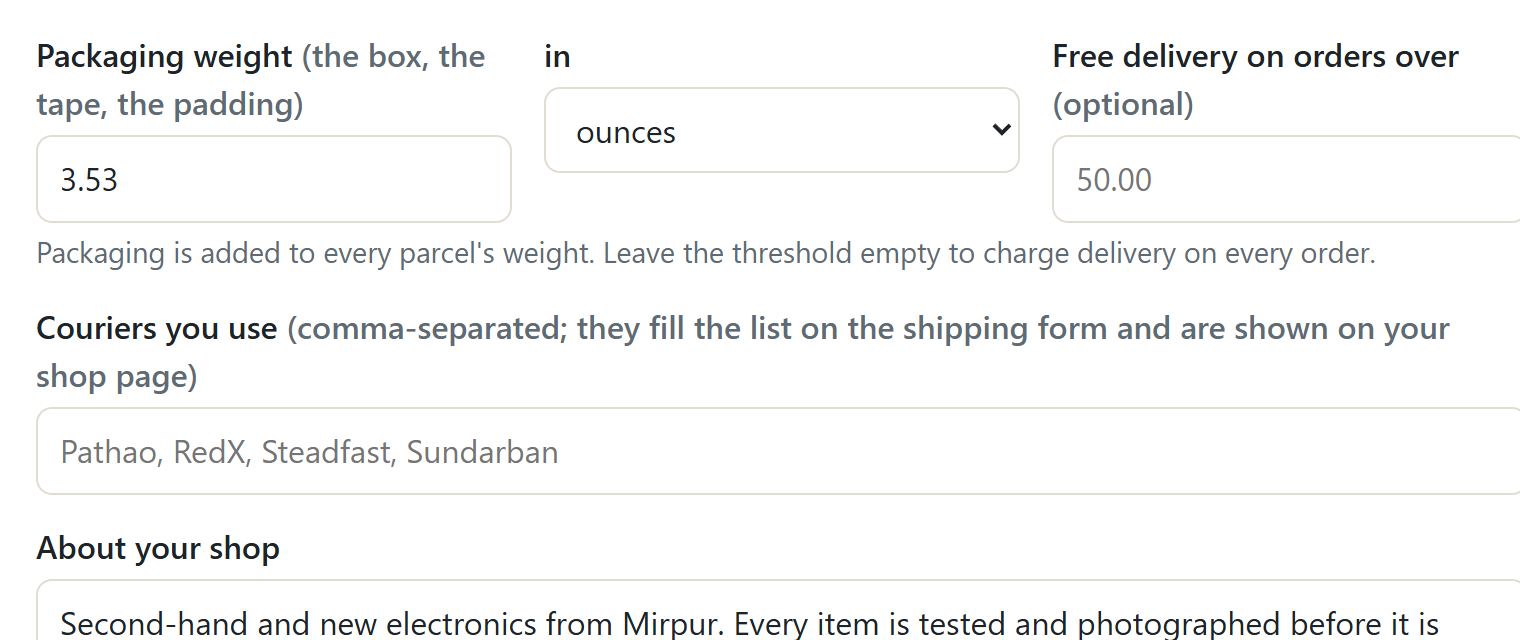
Two things make the postage work out by itself. In your shop settings, the ZIP code you post from: that is where every parcel starts, and without it nothing can be worked out. Then, on each product, its weight in pounds and ounces and the size of the box you will pack it in. Nouhata takes those, works out what the post office charges to send that parcel that far, and shows the buyer their own delivery cost before they buy - which is the thing that stops a buyer abandoning a cart. The box size matters as much as the weight: anything over a cubic foot is charged on its size, so a big light parcel costs more than a small heavy one. There is a packaging weight on your shop too, added to every parcel, because a box and tape weigh something. If you would rather not weigh a thing, leave the weight empty and your shop's flat charge is used instead, exactly as before; and any single item can carry its own fixed charge, or 0 to send it free. You can also set a value above which you deliver free. The postage the buyer pays comes to you with the sale - you are the one buying the label. Commission is charged on the goods, not on the postage, and the sales tax is not yours at all: Nouhata collects it and hands it on. If someone claims a free give-away and asks for it to be posted, they pay the postage before you send it.
Step 13 of 13
Get paid
When the money moves, and why it waits.
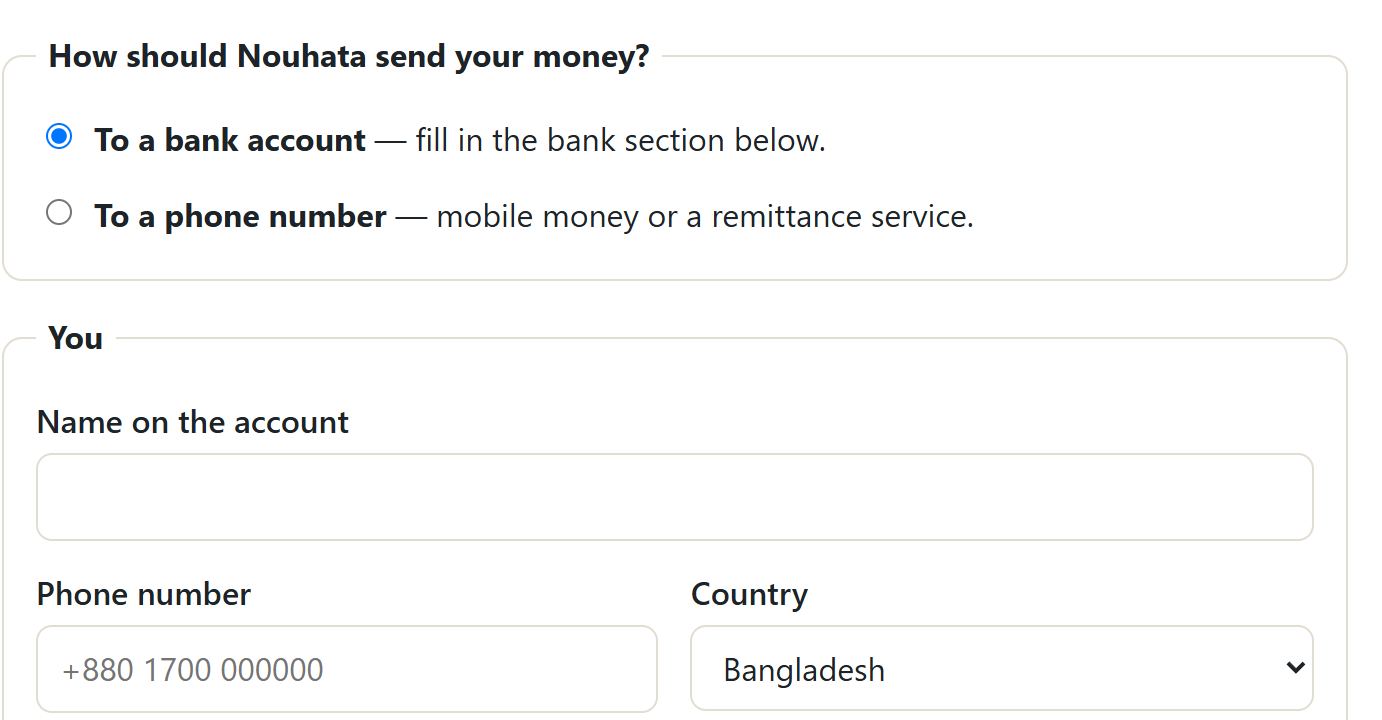
The buyer pays Nouhata, never you directly. Nouhata keeps its commission and holds the rest. Your payment process starts after the buyer has confirmed they received the item AND the return date and the dispute date have both passed, so money is never taken back from you after it has been paid out. A return or a dispute that is still open keeps it held until that is settled. Your dashboard shows what is held, what is on its way, and what has been paid, and the order page shows the date each payment process starts.
Nouhata, operated by ChapAI Systems Inc. This file plays on its own with nothing else beside it, so it keeps working once saved. The same guide is at nouhata.com/help.icpp.html, and as a PDF at nouhata.com/helppdf.icpp.html.